This guide explains how to add your Mintt Instafeed feed to a Shopify Canvas theme.
Canvas is Shopify's theme editor that uses Sidekick. Canvas can't install apps, so the usual method will not add the feed to your theme. You add it yourself in two parts: an HTML snippet on the page, and the Instafeed script in your theme code.
Connect your Instagram account first. Follow the first step of this tutorial: How do I connect and show my Instagram feed on my Shopify store?
Step 1 - Copy the HTML snippet
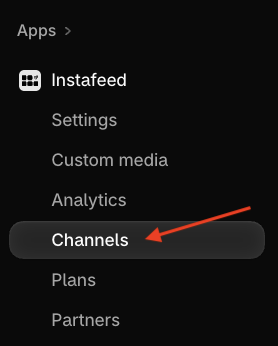
- In your Shopify admin, go to Apps > Instafeed > Channels.
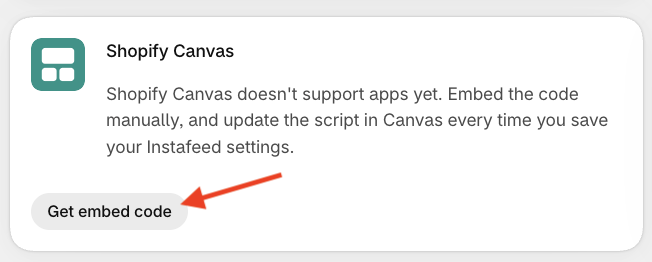
- On the Shopify Canvas card, click Get embed code.
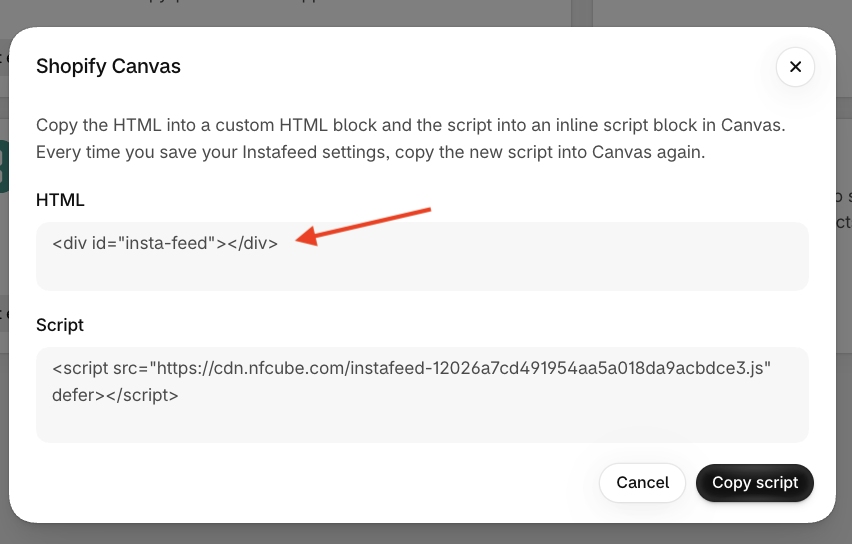
- Under HTML, copy this snippet:
<div id="insta-feed"></div>
Step 2 - Ask Sidekick to add the snippet
Canvas does not let you insert a new block yourself. Ask Sidekick to add it.
- In your Shopify admin, go to Online Store > Themes.
- Open your Canvas theme.
- Ask Sidekick to add an HTML block where you want the feed, and include the snippet from Step 1 in your request.
For example: "Add an HTML block below the featured collection of my homepage containing the following HTML snippet"
<div id="insta-feed"></div>
Step 3 - Add the script to your theme
The script is what loads the feed into the HTML block. Paste it into theme.liquid, inside the <head> tag.
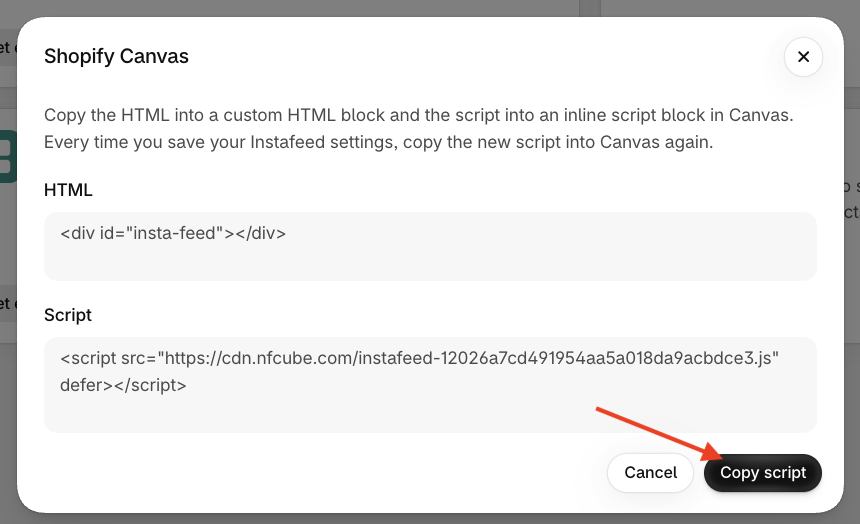
- In the same Shopify Canvas popup, click Copy script.
- Go to Online Store > Themes.
- Next to your Canvas theme, click ... > Edit code.
- Open layout/theme.liquid.
- Paste the script just before the closing
</head>tag. - Click Save.
The copied script looks like this. Yours will have its own file name. Paste the one from your popup.
<script src="https://cdn.nfcube.com/instafeed-YOUR-SCRIPT.js" defer></script>
Update the script after you save feed changes
The script matches your current feed settings. When you change the feed in Mintt Instafeed and click Save feed, copy a new script and replace the old one.
- Go to Apps > Instafeed > Channels > Shopify Canvas.
- Click Get embed code, then Copy script.
- In layout/theme.liquid, replace the previous Instafeed
<script>tag with the new one. - Click Save.
New Instagram posts still appear without a new script. Replace the script when you save changes in the app.
Common questions
- Why doesn't the usual method work?
Canvas can't install apps, so the usual way of adding the feed to your theme will not work. Use the HTML snippet and the script in this guide.
- The block is on the page, but the feed is empty. What should I check?
Confirm both parts are in place: the HTML snippet is inside an HTML block on that template, and the script from Shopify Canvas is inside <head> in layout/theme.liquid. Then publish or preview the theme again.
- Do I need a new script every time I post on Instagram?
No. New posts show up with the script you already added. Copy a new script only after you change the feed in Mintt Instafeed and save.
- Can I add the HTML block myself in Canvas?
Canvas does not let you add a block manually. Ask Sidekick to add the HTML block and include the snippet in your request. Read Shopify's guide to Canvas for how Sidekick and blocks work.