With Mintt Instafeed Plus, you can submit shoppable videos to Shopify's Shop app. To use this feature, you must install the Shop app from the Shopify App Store.
How it works
Videos submitted through the Mintt Instafeed app may appear in the Shop app home feed. Shop decides which shoppers see each video based on user activity.

Shoppable video in the Shop app home feed.
Step 1 - Enable the Shop app integration
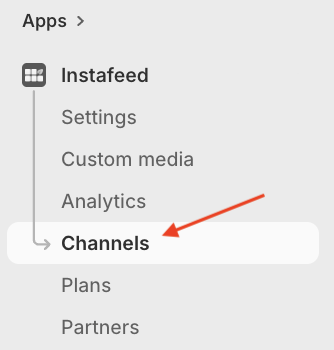
- In your Shopify admin, go to Apps > Instafeed > Channels
- Under Shop app, turn on Enabled
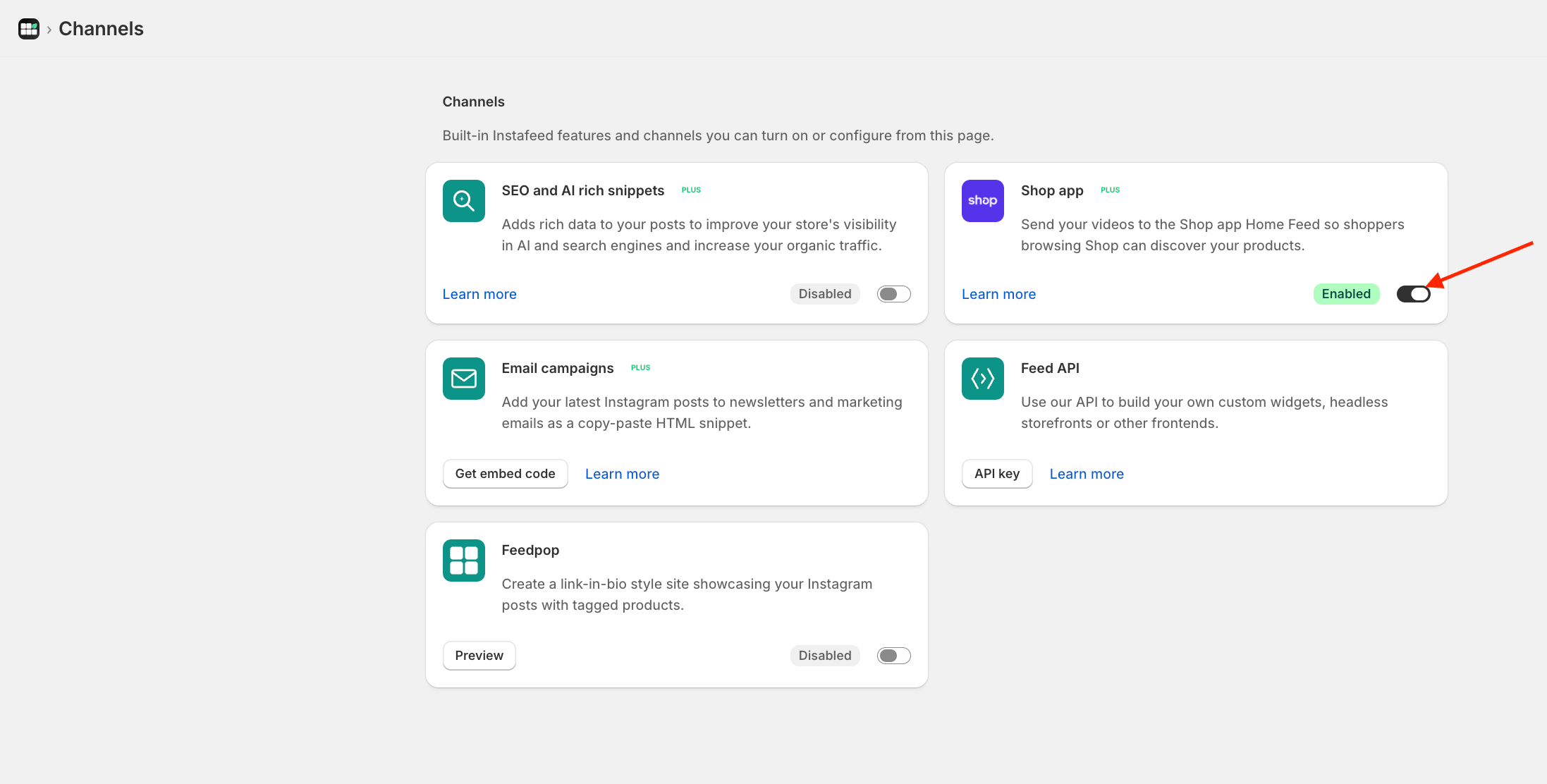
If you can't enable Shop, your store may not meet Shop's eligibility requirements. Eligibility is determined by Shopify and can’t be changed by Mintt Studio.
Turning off the integration stops new video submissions to the Shop app. Videos already submitted may still appear there.
Step 2 - Upload videos
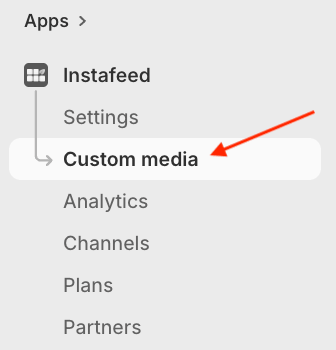
- In your Shopify admin, go to Apps > Instafeed > Custom media
- Upload vertical videos (portrait format, such as 9:16). For more details on uploading videos, see our full guide.
Step 3 - Tag products on videos
- Go to Apps > Instafeed > Manage posts and tag at least one product on the videos. To learn more about product tagging, see our full guide.
Make sure Custom media is selected under Posts to show so your uploaded videos appear in Manage posts.
Step 4 - Send videos to the Shop app
- Return to Apps > Instafeed > Custom media. Click Send to the Shop App on each video.

- Confirm by clicking Yes

- To delete a video, click Remove from Shop App

Video analytics on Shop
- To view analytics for your shoppable videos on Shop, such as impressions and interactions, go to your Shopify admin and navigate to Shop (Sales channels) > Posts

Common questions
- Why isn’t my Instagram feed showing on my Shop store?
Instagram feeds are no longer automatically shown in Shop. Only videos uploaded in Custom media and successfully sent to Shop can appear in the Shop app.
- Can I choose which videos appear on Shop?
Yes. You can choose which uploaded videos to send to Shop, as long as they meet the requirements. Videos must be in portrait format and have at least one tagged product.
- Can I send videos from my secondary feeds?
Shop submissions are based on uploaded videos in Custom media, not Instagram feed posts or feed IDs.