Full SEO with TinySEO
The SEO and AI rich snippets feature adds structured data to your feed so AI and search engines can read your content. See How do I enable SEO and AI rich snippets?
For full SEO and page-speed optimization across your store, install TinySEO.
Add your Mintt Instafeed feed to a TinySEO blog post
Place your Instagram feed inside a blog post with the Instafeed block in the TinySEO blog builder. Mintt Instafeed fills the block with your content when the page loads on your storefront. Readers see photos and Reels next to the text and can shop straight from the post.
What this integration does
TinySEO places the block inside one specific blog post. Mintt Instafeed controls which posts show, how the feed looks, and renders it on your live storefront.
This differs from Mintt Instafeed's Add to theme button. Add to theme puts your feed on a page template, so it appears on every page that uses that template. The TinySEO block puts your feed in a single post.
Before you start
- Have Mintt Instafeed installed and connected to your Instagram account.
- Turn on the Mintt Instafeed app embed. The TinySEO block only places a container, the same as pasted HTML. In your Shopify admin, go to Online Store > Themes > Customize, open App embeds, and switch the Instafeed embed on. A Shopify 2.0 app section from Add to theme loads the feed itself and does not need this.
- Have TinySEO installed, with the blog post you want to edit open in its blog builder.
Without the app embed, the block publishes as an empty container and nothing shows on the page.
Configuration steps
Add the Instafeed block in TinySEO
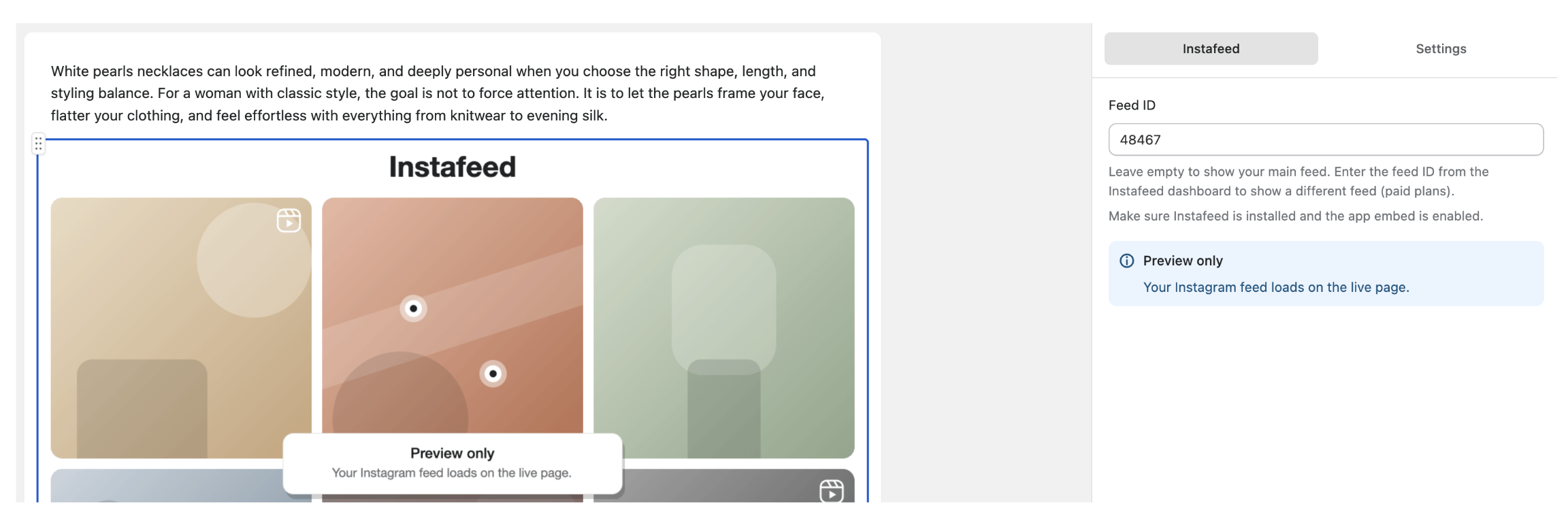
This step happens in the TinySEO blog builder. Open your post and click Add section where you want the feed. Pick Instafeed from the block list, leave Feed ID empty to show your main feed, then save or publish.
For the full builder walkthrough, see TinySEO's guide: How to add your Instagram feed to a blog post with Instafeed.
Note: Your feed does not appear in the TinySEO editor. It loads only on the published page, because the Mintt Instafeed embed runs on your storefront and not inside TinySEO. Publish the post and open it on your store to see the live feed.
Show a specific feed (optional)
On paid plans you can create more than one feed, such as a hashtag feed or a curated set of posts. To show one of those instead of your main feed:
- Open Mintt Instafeed in your Shopify admin and pick the feed from the Feed dropdown at the top right.
- Click the ID button next to Add to theme to copy the feed number, for example
48467. Thefeed-48467format works too. - Paste it into the block's Feed ID field in TinySEO and save the post.
To create and manage extra feeds, see How do I show multiple feeds?
Set the feed's content and design in Mintt Instafeed
You control the feed in Mintt Instafeed, not in the blog builder. Set which posts show, post type, header, likes, and hashtag filter under Feed content. Set the layout (Grid, Slider, and more) and colors under Feed design.
Change these in Mintt Instafeed and the published post updates on its own.
Common questions
- Why doesn't my feed show in the TinySEO editor?
The editor shows a placeholder. Your Instagram content loads only on the live page, because the Mintt Instafeed embed runs on your storefront. Publish the post and open it on your store.
- My feed is blank on the live page. What should I check?
- The Mintt Instafeed app embed is on.
- The Feed ID matches a feed that exists in your Mintt Instafeed account.
- Your Instagram account is still connected. Open the feed in Mintt Instafeed and check the connected account and the Last sync time.
Instagram disconnecting the account is the most common cause of a blank feed, so reconnect it if needed. For more, see My feed doesn't show on my store.
- Can I style the feed for one post only?
Yes. Use the block's Custom CSS field in TinySEO. The feed renders in a container with the ID feed-<your feed ID>, for example #feed-48467, and the class instafeed-shopify. Target those selectors.
- How is this different from Add to theme?
Add to theme puts your feed on a page template, so it shows on every page that uses that template. The TinySEO block puts your feed in one specific post.
- Do I need a paid plan?
Your main feed works on any plan. Creating more than one feed, so you can show a specific feed by ID, requires a paid Mintt Instafeed plan.
Need help?
If the feed doesn't appear after publishing, confirm the Mintt Instafeed app embed is on and the Feed ID matches a live feed in your account. For TinySEO blog builder settings, see TinySEO's help center. For Mintt Instafeed support, contact the Mintt Studio team.