This feature is available in our Pro plan.
You can embed your feed directly into your marketing emails to showcase your latest Instagram content, and create more engaging and visually rich emails for your subscribers.
To embed your feed in an email campaign, follow these steps:
Step 1 - Get embed code
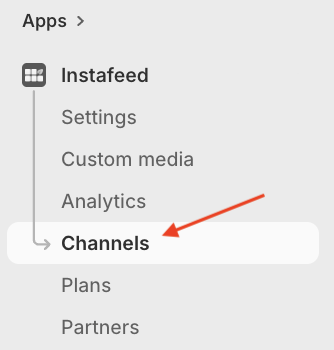
- In your Shopify admin, go to Apps > Instafeed > Channels
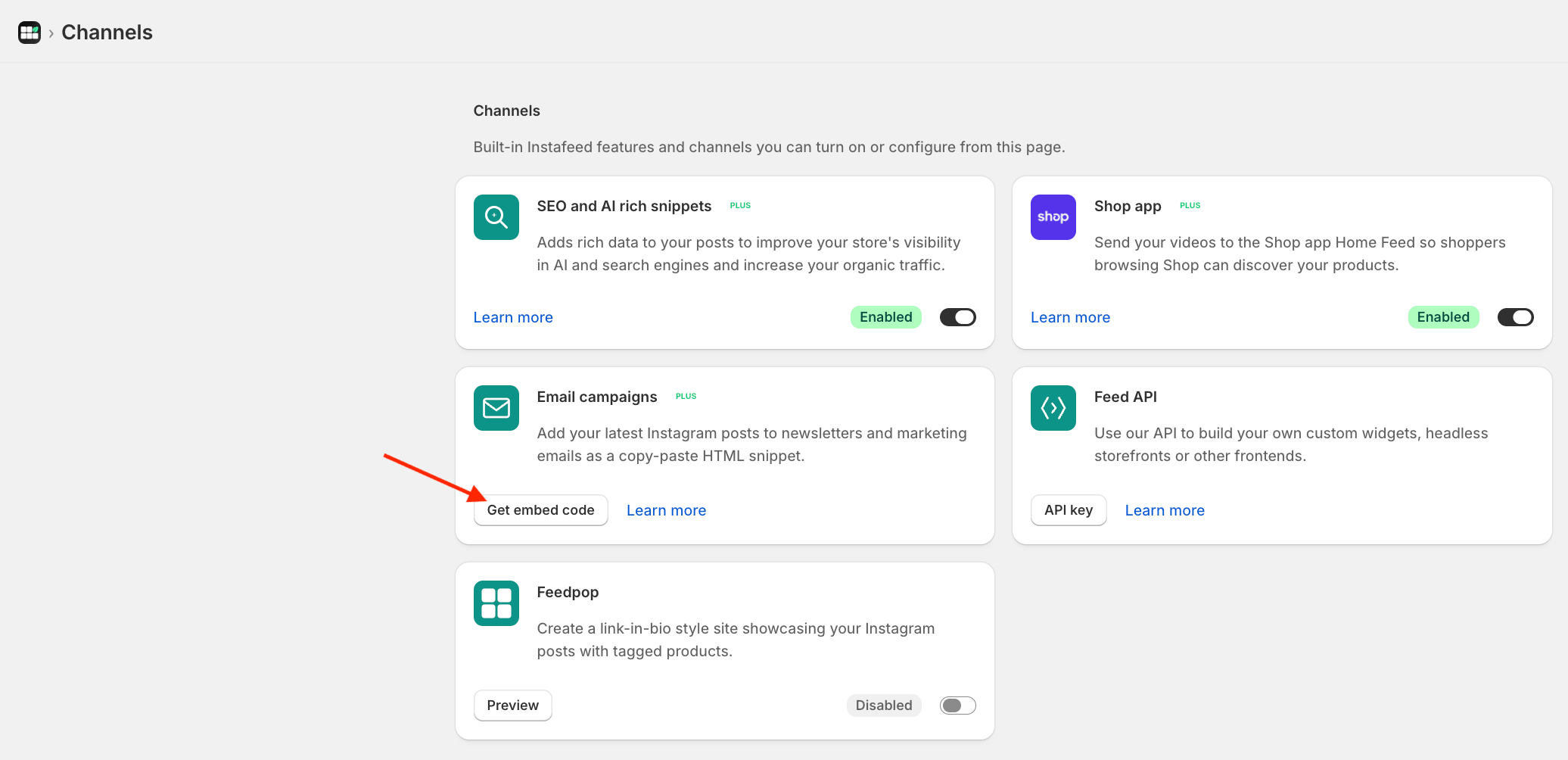
- In the Email campaigns section, click Get embed code
- Write a title for the heading (this will appear above your feed in the email), select the feed you want to display, and choose the number of photos to include.
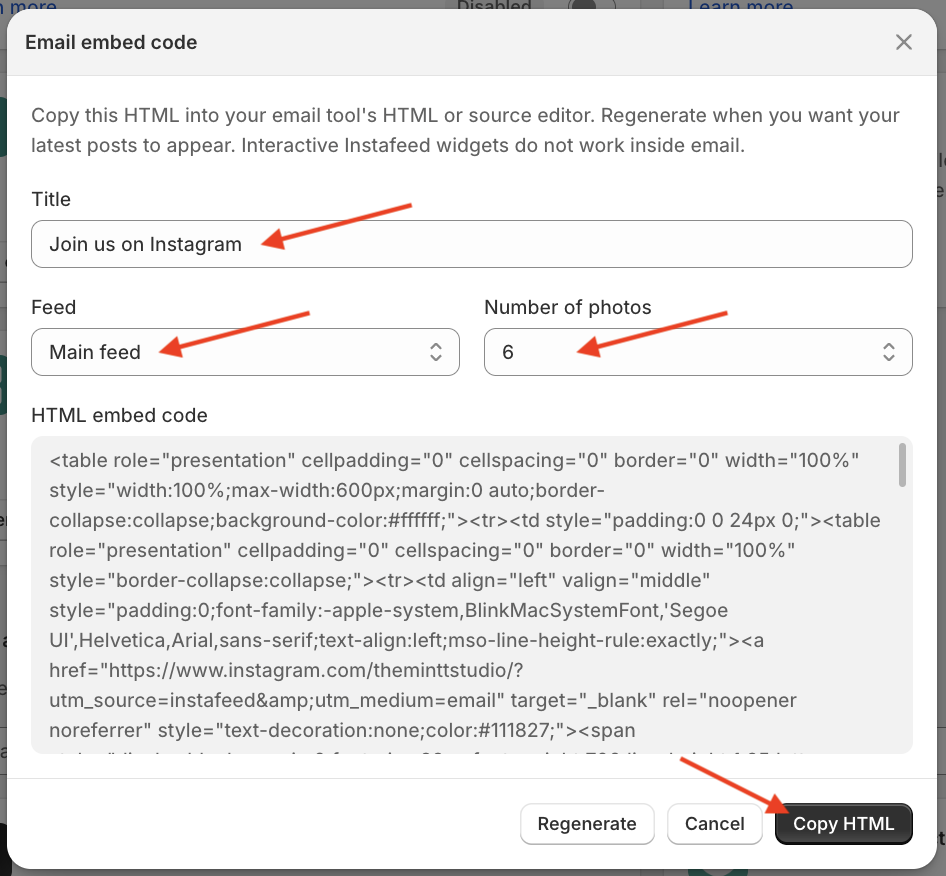
- When finished, click Copy HTML
If you update the title, change the selected feed, change the number of photos, or your feed gets new posts, click Regenerate to update the embed code.
Step 2 - Paste the code on your email
Paste the copied HTML code into your email marketing platform’s HTML editor when creating or editing your campaign. Your feed will then be displayed inside your email.
For platform-specific instructions, see: