Using Mintt Instafeed with Shopify Messaging
The Mintt Instafeed and Shopify Messaging (previously Shopify Email) integration allows you to add your Instagram feed directly to your Shopify marketing emails.
This lets you showcase your latest Instagram content inside your campaigns, helping you create more engaging and visually rich emails for your subscribers.
Before you start
Before using this integration, make sure that:
- The Mintt Instafeed app is installed and you're on the Pro plan.
- You have created at least one feed in Mintt Instafeed.
- You have copied the embed code for your feed in Mintt Instafeed. Learn how to do it here.
- You have Shopify Messaging installed and access to email campaigns.
Add the feed to Shopify Messaging
- Open Shopify and go to Apps > Messaging.
- Create a new email campaign or edit an existing one.
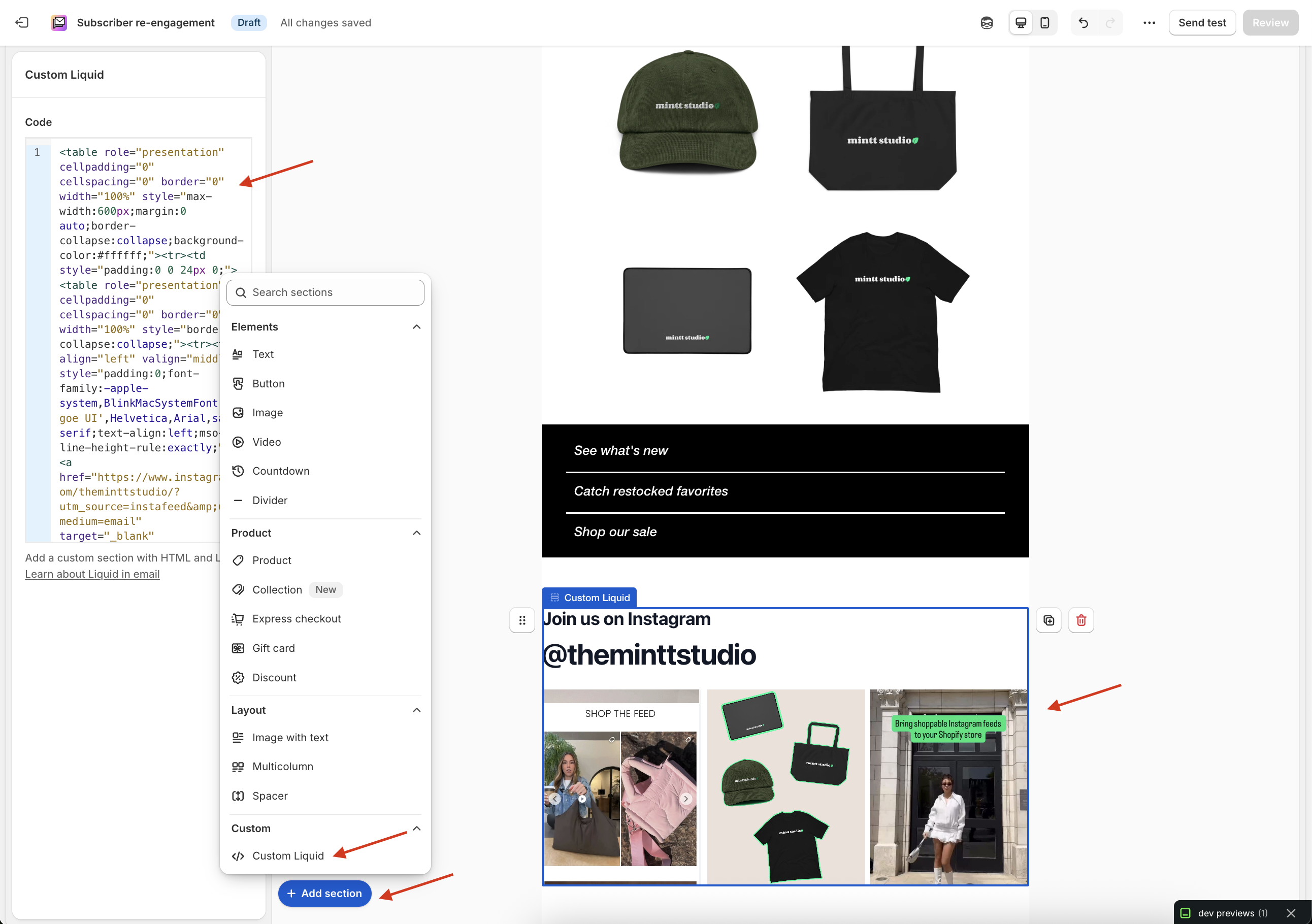
- Click Add section and add a Custom Liquid section to your email.
- Paste the HTML code copied from Mintt Instafeed into the Custom Liquid block.
- Preview your email to confirm everything is correct.
- Send or schedule your campaign.
Common questions
- Where do I configure which feed and heading is shown?
You can configure both the feed and heading directly in Instafeed > Channels > Get embed code before copying the HTML code. Read the full guide here.
- Where do I get the embed code?
You copy it inside Instafeed under Channels > Get embed code. Read the full guide here.