This guide walks through the five settings that make Mintt Instafeed work as a conversion-focused feed widget, so shoppers can go from inspiration to cart without leaving the page.
What you need: Product tagging, and Shop now & add to cart buttons are available on Pro and Plus. Auto-tagging, product and collection page filters, and Analytics are Plus features.
Step 1 - Tag the products shown in your posts
Tagged posts are what make your feed shoppable. When a shopper opens a post, they see the products in it and can go straight to them.
Tag products manually (Pro and Plus)
- In your Shopify admin, go to Apps > Instafeed and click Manage posts.
- Click Tag on the post you want to make shoppable.
- Click Tag products or Tag collections, choose the items, and click Select.
- Repeat for each post, then click Back to feed configuration.
Start with your best-performing posts and the ones that show your bestsellers clearly.
Tag products automatically (Plus)
If you already tag products on Instagram through Instagram Shopping, Mintt Instafeed can pull those tags in for you. Turn on Auto-tag products under Shopping experience (step 2). New posts arrive in your feed already tagged, and you can still add tags manually where needed.
For full instructions, see How do I tag products and collections? and How do I tag products automatically?
Step 2 - Configure the shopping experience
The Shopping experience settings control how tagged products behave in the post popup. Each one removes a step between seeing a product and buying it.
| Setting | What it does | Turn it on when |
|---|---|---|
| Auto-tag products | Pulls product tags from Instagram Shopping into your feed automatically. | You already tag products on Instagram. |
| Carousel product tags | Attaches tags to each carousel slide instead of the whole post. | Your carousels show a different product on each slide. |
| Add to cart | Lets shoppers add a tagged product or variant to cart from the popup. | Always, for a conversion-focused feed. |
| Show prices | Displays the product price next to tagged items in the popup. | Always, so shoppers can decide without leaving the popup. |
To find these settings, go to Apps > Instafeed, open your feed settings, and scroll to Shopping experience. Turn on the toggles you need and save your feed.
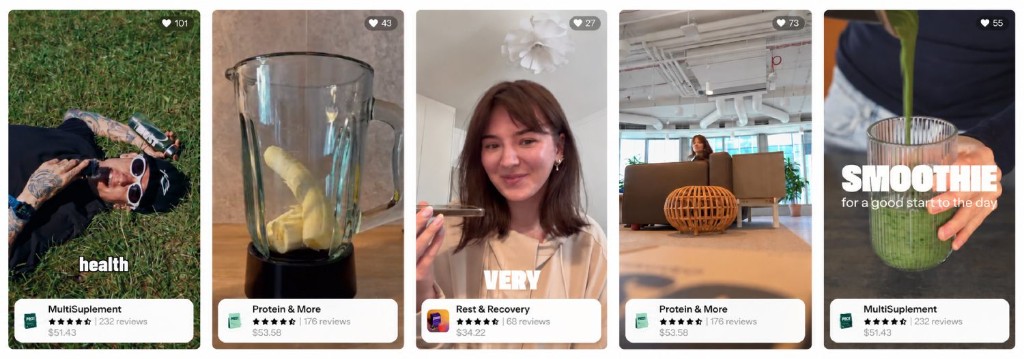
Step 3 - Use the shoppable strip layout
The shoppable strip is Mintt Instafeed's automated layout built for conversion. It puts your tagged products in front of shoppers with no layout decisions on your side.
To use it, open your feed settings, go to Storefront layout, and select Shoppable strip. Save your feed and preview it on your store.
The strip works best with tagged posts, so complete step 1 first. Place it where shoppers are already browsing, such as your homepage or below product descriptions.
Step 4 - Show matching posts on product and collection pages (Plus)
With the product and collection filter on, each product or collection page shows only the posts tagged with that product or collection. Shoppers see the item they're looking at, styled and worn, right where they decide to buy.
- Go to Apps > Instafeed and find Product and collection pages filter.
- Choose a filter option and click Save feed.
- Click Add to theme, select Product page or Collection page, and save in the theme editor.
| Option | What shoppers see | Best for |
|---|---|---|
| Off | Your full feed, no filtering | A general brand feed |
| On, show matching posts only | Only posts tagged with that page's product or collection | Catalogs where most products are tagged |
| On, show matching posts or fallback | Matching posts first, then recent posts to fill the space | Making sure the feed never shows up empty |
This filter depends on tagging, so the more products you tag in step 1, the more pages show relevant content. See How do I create product and collection feeds on product and collection pages?
Step 5 - Review clicks and influenced orders in Analytics (Plus)
Analytics shows which posts and products drive clicks and orders, so you can tag more of what works and drop what doesn't. Tracking is off by default, so turn it on before you expect to see data. See How do I enable Analytics?
Turn on Analytics
- Go to Shopify > Apps > Instafeed and click Analytics in the left-hand menu.
- Click the toggle in the top-right corner, or click Enable Analytics.
- Choose Engagement + influenced orders to see which orders your feed influenced. This installs a storefront pixel and may ask for extra Shopify permissions. Engagement only tracks views and clicks.
What to look at
| Metric | What it tells you |
|---|---|
| Total views | Times a shopper actually saw your feed. A view counts once the feed scrolls into view. |
| Total clicks | Post opens and product clicks from your feed |
| Average click rate | Share of feed views that led to a post open or product click |
| Top products | Your most-clicked tagged products. Only shows if you tag products in your posts. |
| Top posts | Your most-clicked posts |
| Influenced orders | Orders from visits where the shopper opened a post, viewed a product, or added to cart from your feed |
| Influenced revenue | Revenue from those influenced orders |
Influenced orders and revenue appear only with Engagement + influenced orders. Use the date range (7, 30, or 90 days) and feed dropdowns to compare feeds, and turn on Compare to previous period to see the trend.
Common questions
- Which plan do I need for a conversion-focused setup?
You can tag products manually on Pro and Plus. Auto-tagging, product and collection page filters, and Analytics need Plus.
- Can I tag products manually if auto-tagging is on?
Yes. Auto-tagging pulls in tags from Instagram Shopping, and you can still add or adjust tags manually in Manage posts.
- How do I remove a tag that was added automatically?
Delete the tag on the post in Instagram. Auto-added tags can't be removed inside Mintt Instafeed.
- Can I tag collections, or only products?
Both. In the tagging popup, choose Tag products or Tag collections.
- What happens on a product page with no tagged posts?
It depends on the filter option. Show matching posts only shows nothing for that product. Show matching posts or fallback fills the space with recent posts, so the feed never appears empty.
- Why don't I see any data in Analytics?
Analytics is off by default. Go to Instafeed > Analytics and click Enable Analytics. Data only collects from that moment, not before.