This guide explains how to hide Instagram tagged posts (UGC) by default on your feed, and then manually choose which ones to show.
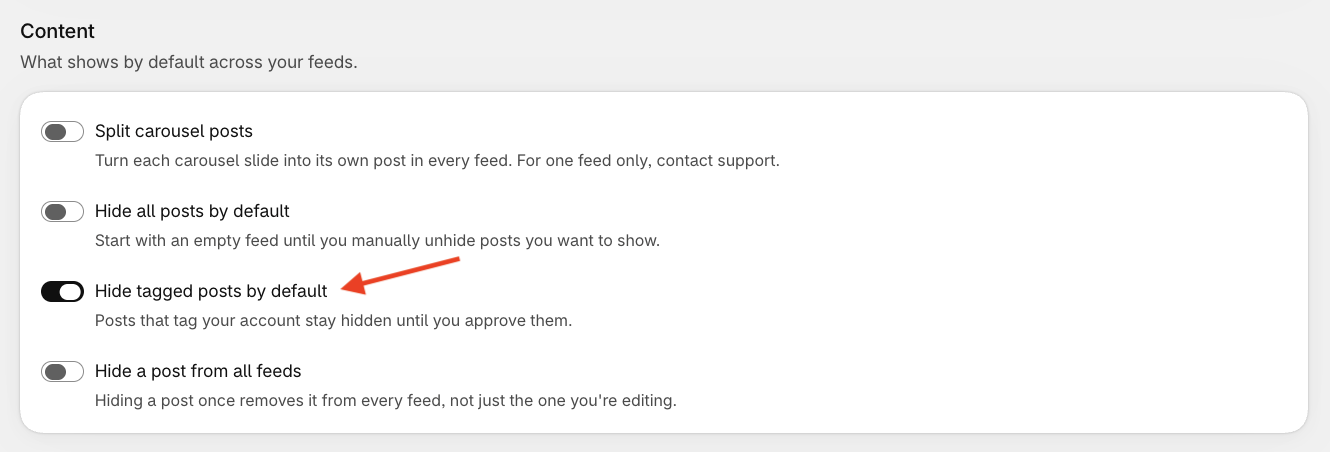
Step 1 - Enable the "Hide tagged posts by default" setting
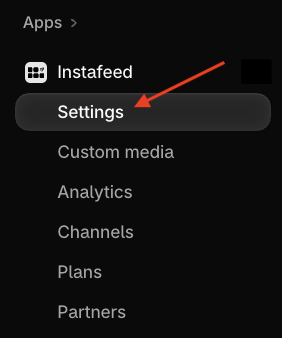
- In your Shopify admin, go to Apps > Instafeed > Settings.
- Under Content, enable Hide tagged posts by default.
- Click Save.
Step 2 - Unhide posts manually
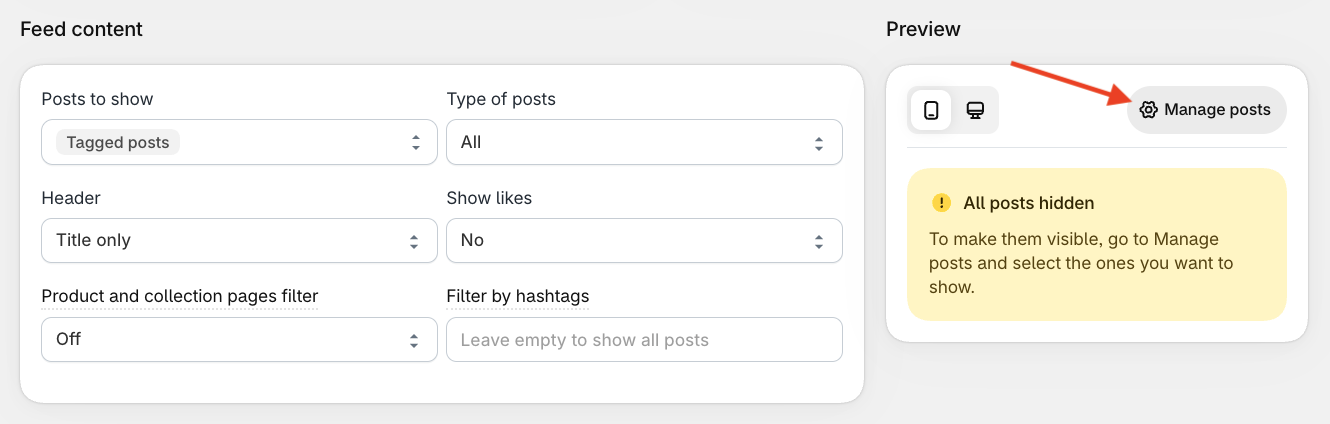
All tagged posts are now hidden by default. To manage them, make sure the Tagged posts option (or Tagged posts + other post types) is selected under Posts to show.
- Go to Apps > Instafeed. Under Preview, click Manage posts.
- Click Show on the posts you want to display.
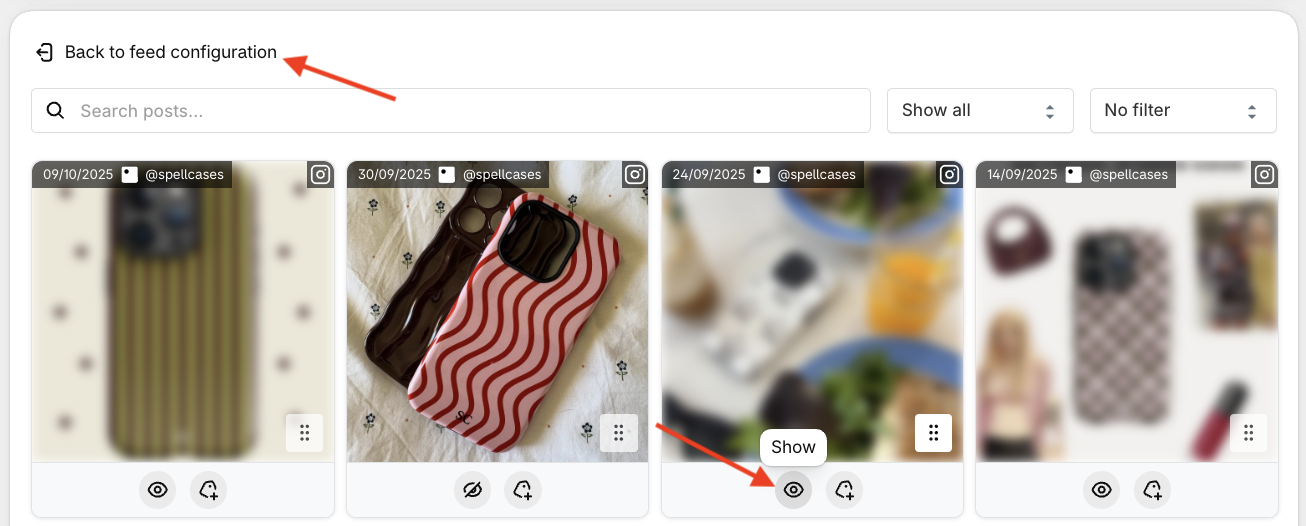
- Click Back to feed configuration to return to the Mintt Instafeed page.
- Click Save.