Creating feeds with custom media (images and video) is available in our Plus plan only.
The Custom media uploads feature on Mintt Instafeed lets you manually upload images or videos to your feeds, helping you create a more cohesive, brand-aligned feel. Read this guide to learn how to create and manage feeds with custom media on Mintt Instafeed.
Contents
Step 1 - Upload media to Mintt Instafeed
Step 2 - Create a feed with custom media
Watch a step by step video tutorial
Step 1 - Upload media to Mintt Instafeed
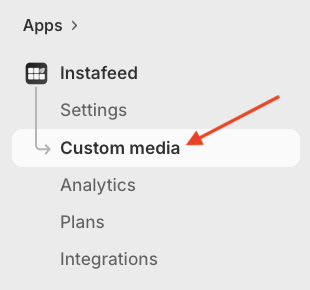
- To upload media to show on your feed, go to Instafeed > Custom media.
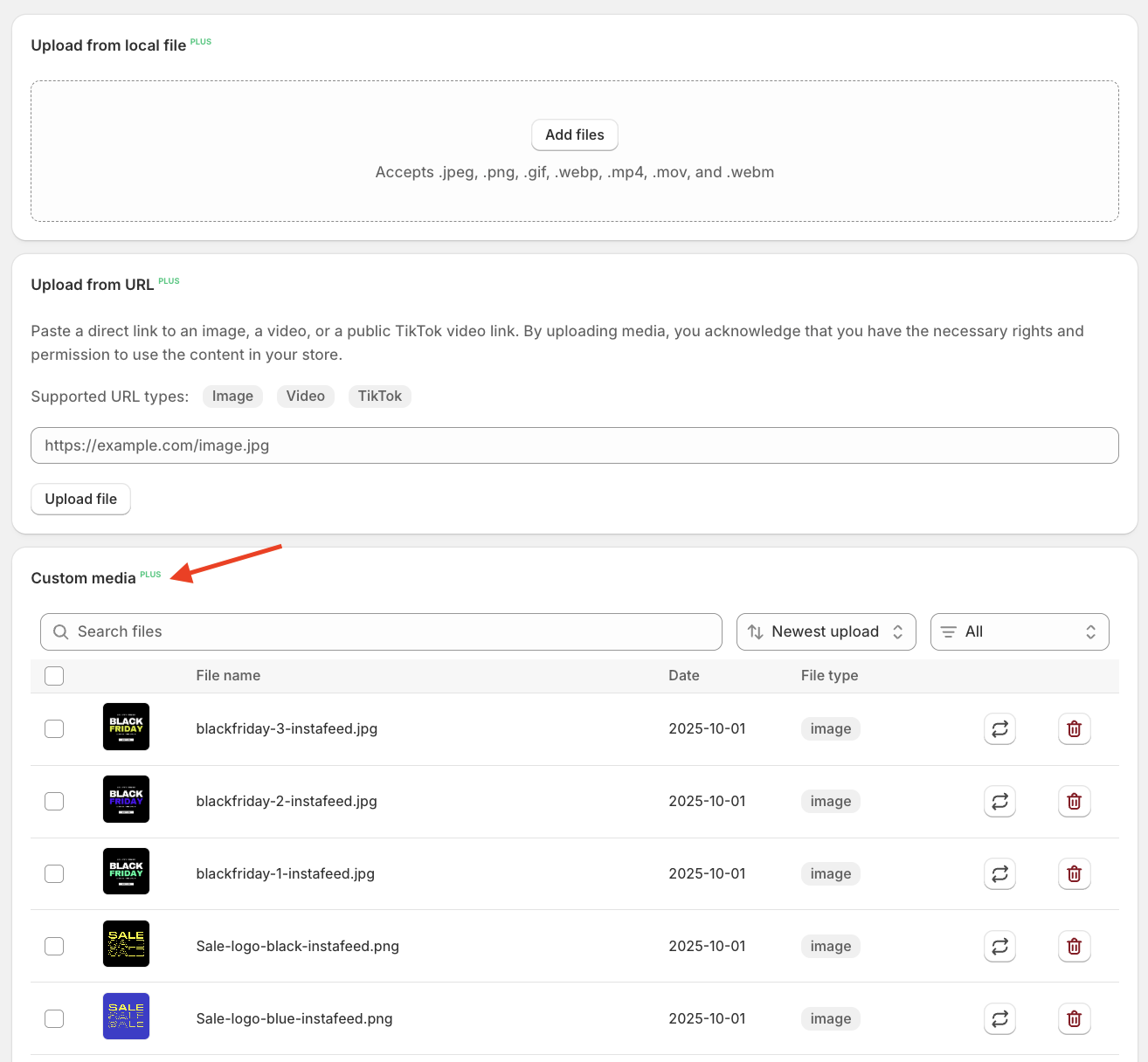
- Under Upload from local file, drag and drop files into the upload box, or click Add files to select them from your device.
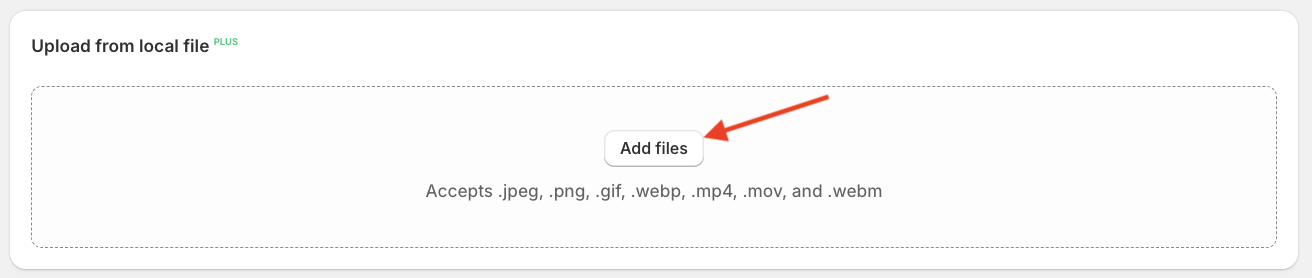
Important note: Make sure files are one of the accepted types:
Images: .jpg, .jpeg, .png, .gif, .webp
Videos: .mp4, .mov, .webm.
The uploaded files will appear under Custom media.
Files uploaded in Mintt Instafeed are also automatically added to your Shopify Files (Content > Files).
Step 2 - Create a feed with custom media
- Go to Shopify > Apps > Instafeed.
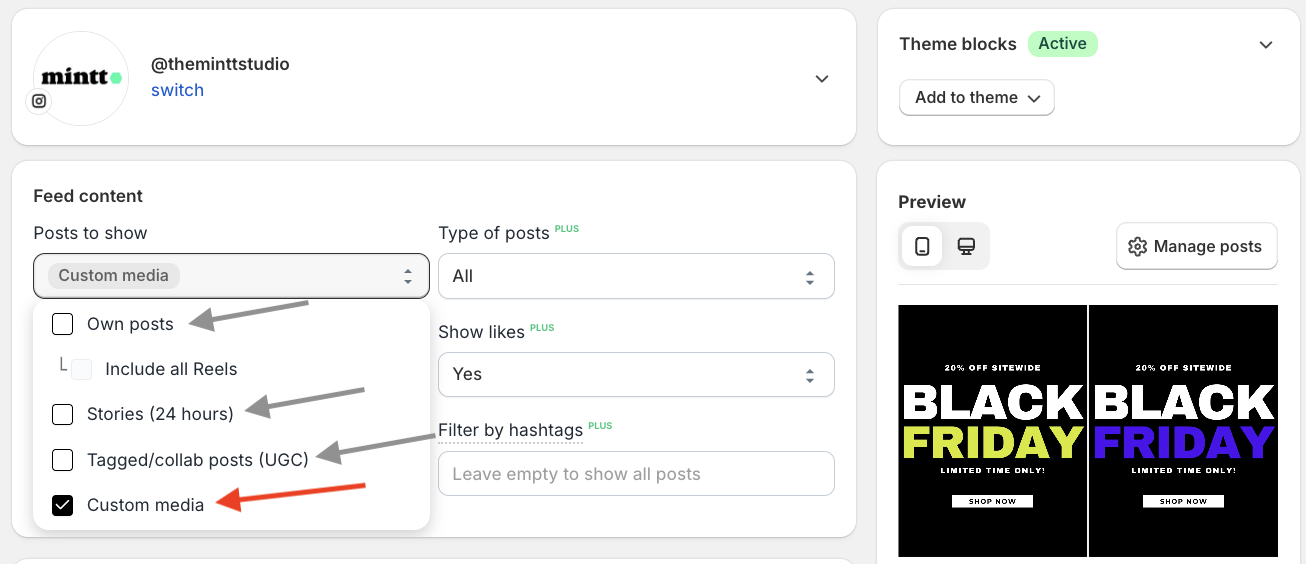
- Under Posts to show, select Custom media to create a feed with custom media only.
To create a feed with custom media and Instagram content like your own posts, stories, or tagged posts, simply select the desired options from the dropdown menu.
- Click Save feed.
How to manage files
- Go to Shopify > Apps > Instafeed > Custom media.
On Mintt Instafeed Custom media, you can:
- Delete files from the Mintt Instafeed app. To delete a file, click the Delete icon.
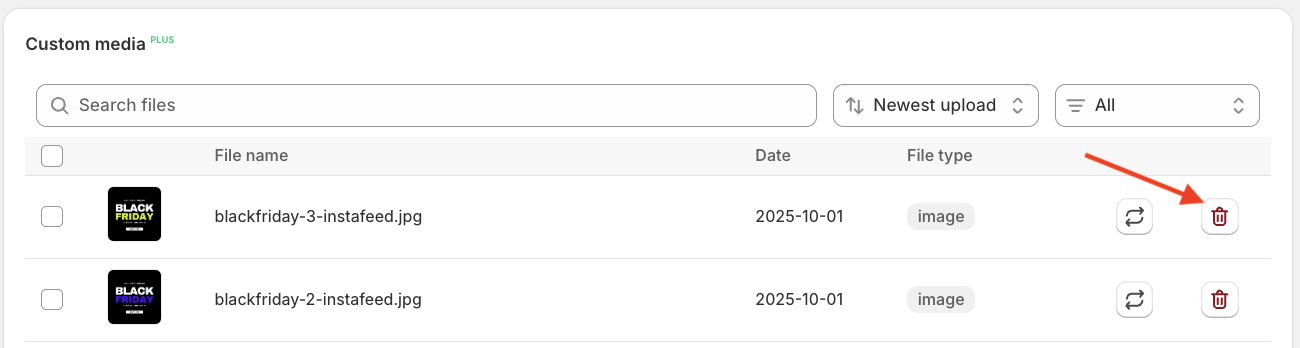
⚠️ Deleting files from the Mintt Instafeed app will also delete files from Shopify Files.
Change the date for each file.
To change the date of a file, click on the file.
Select the new date from the calendar.
Click Save.
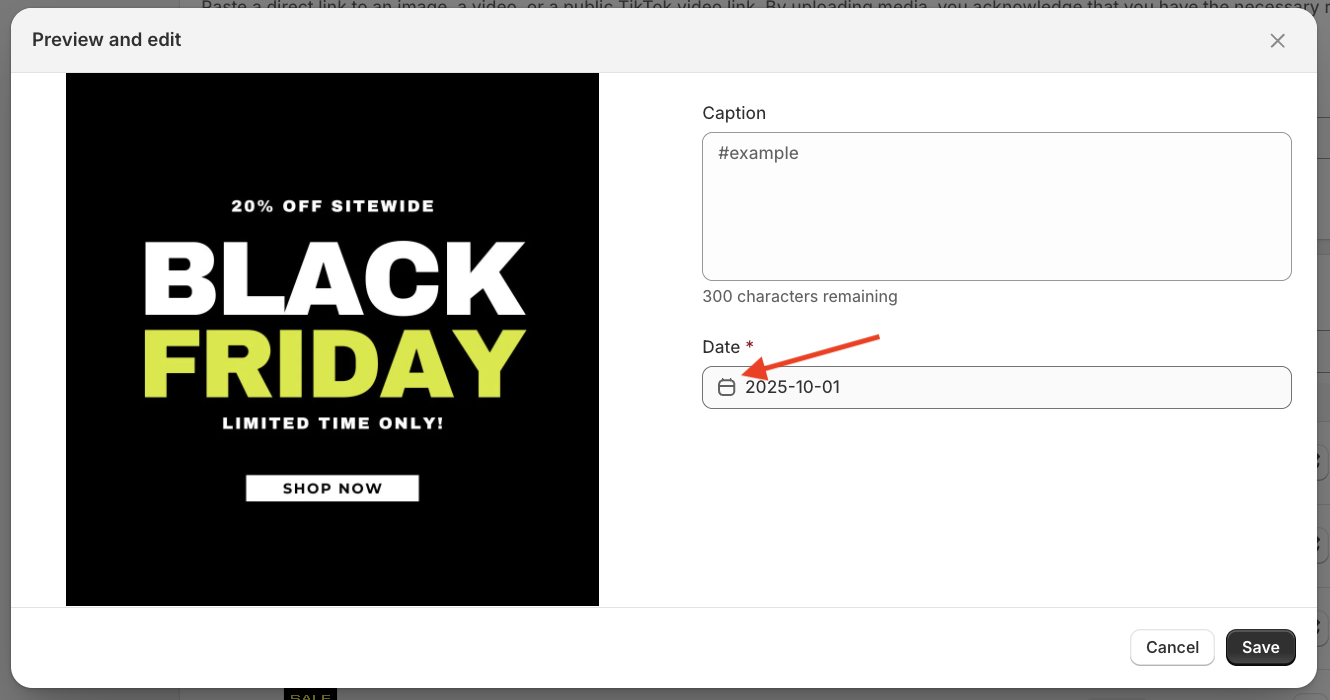
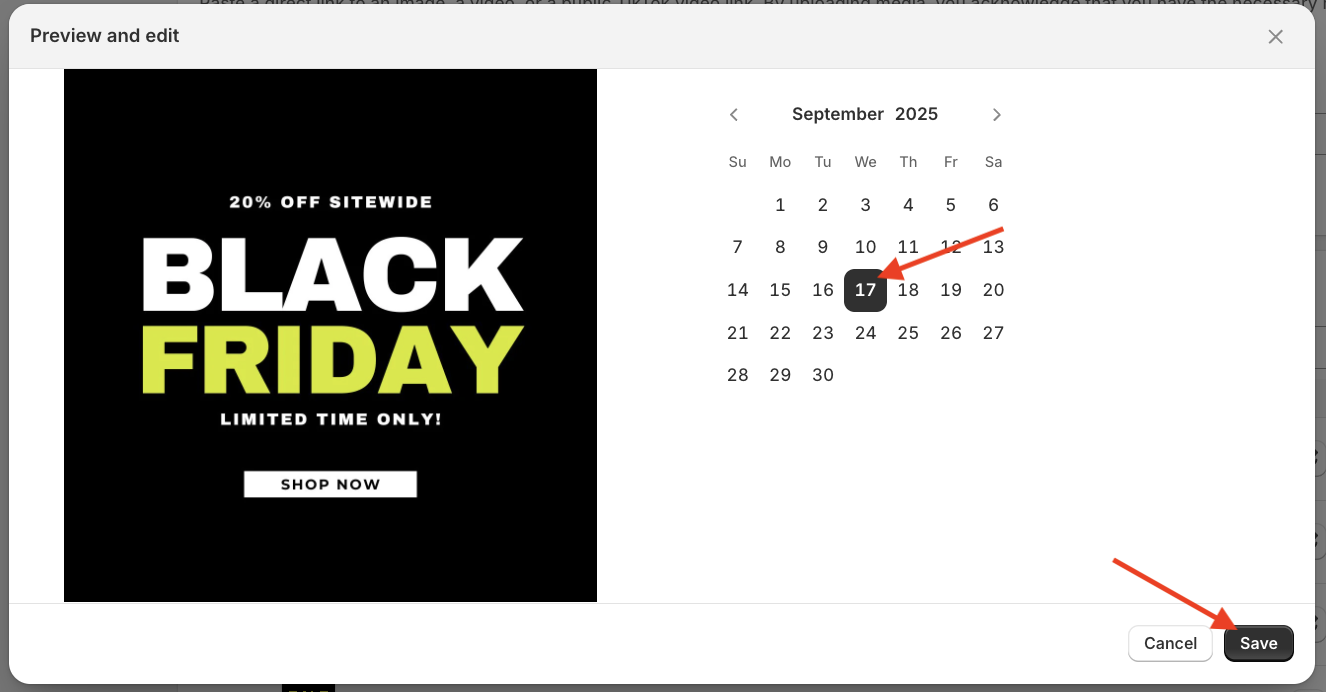
Posts appear on your feed in chronological order. Changing a file's date will change the order in which it appears on your feed.
Write a caption for each file.
To write a caption on a file, click on the file.
Write the desired description on the Caption text box.
Click Save.
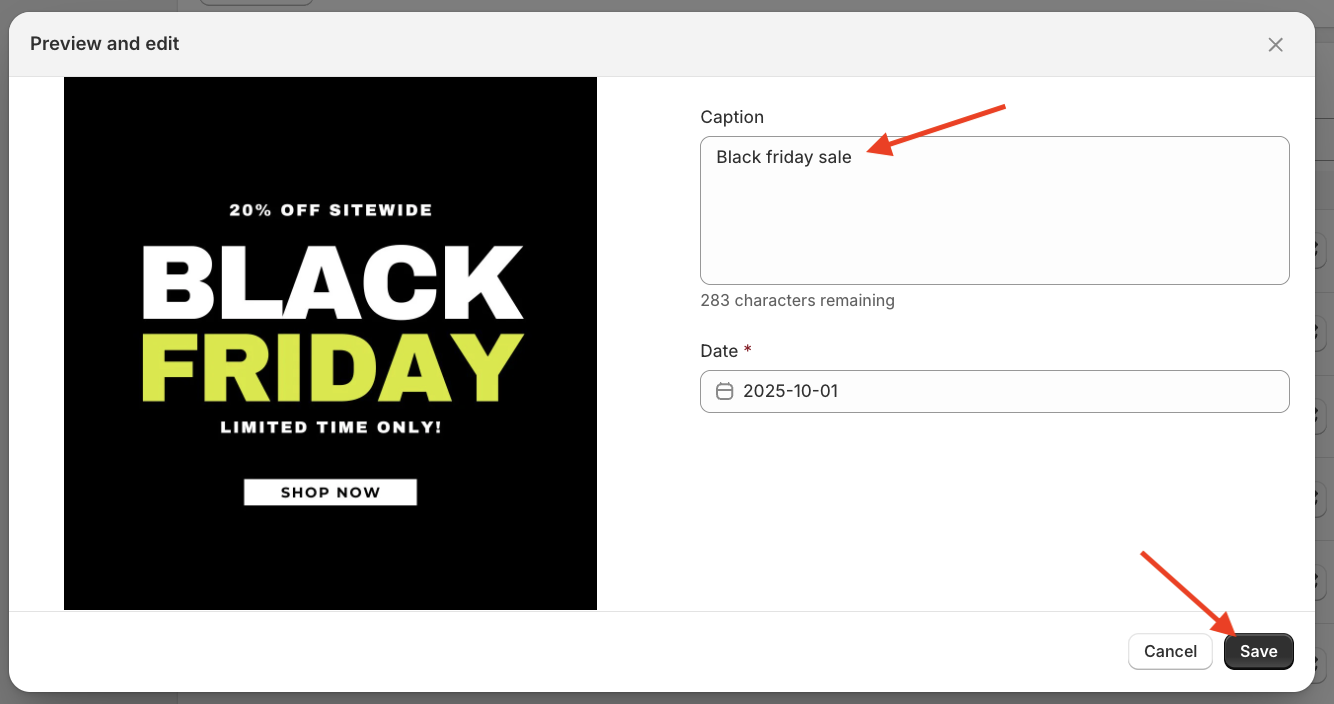
You can include hashtags in each caption, which can then be used with the Filter by hashtags feature.