Using Mintt - Instafeed with GemPages
If you build pages in GemPages Landing Page Builder, Instafeed is available as a native element in the editor. Drag a shoppable Instagram feed onto any page without theme edits or code.
What this integration does
GemPages is a drag-and-drop page builder for Shopify. Instafeed is integrated as a third-party app element, so any feed you've configured in Instafeed can be placed inside a GemPages page in a few clicks.
The feed stays connected to your Instagram account. Posts auto-sync, layouts stay responsive, and shoppable tags continue to work the same as on a standard Shopify page.
Before you start
Two apps need to be installed and configured first. Instafeed must be installed from the Shopify App Store and connected to your Instagram or Meta business account, with at least one feed created. GemPages needs to be installed in the same Shopify store.
If you haven't set up Instafeed yet, see the Instafeed setup docs.
Enable the Instafeed element in GemPages
The steps depend on your GemPages editor version. In Editor V7, Instafeed is already in the sidebar. In Editor V6, you need to enable it once. Learn more about it here.
- Open a page from the GemPages Dashboard.
- Click the Library button on the toolbar.
- Go to the Elements tab and search for Instafeed.
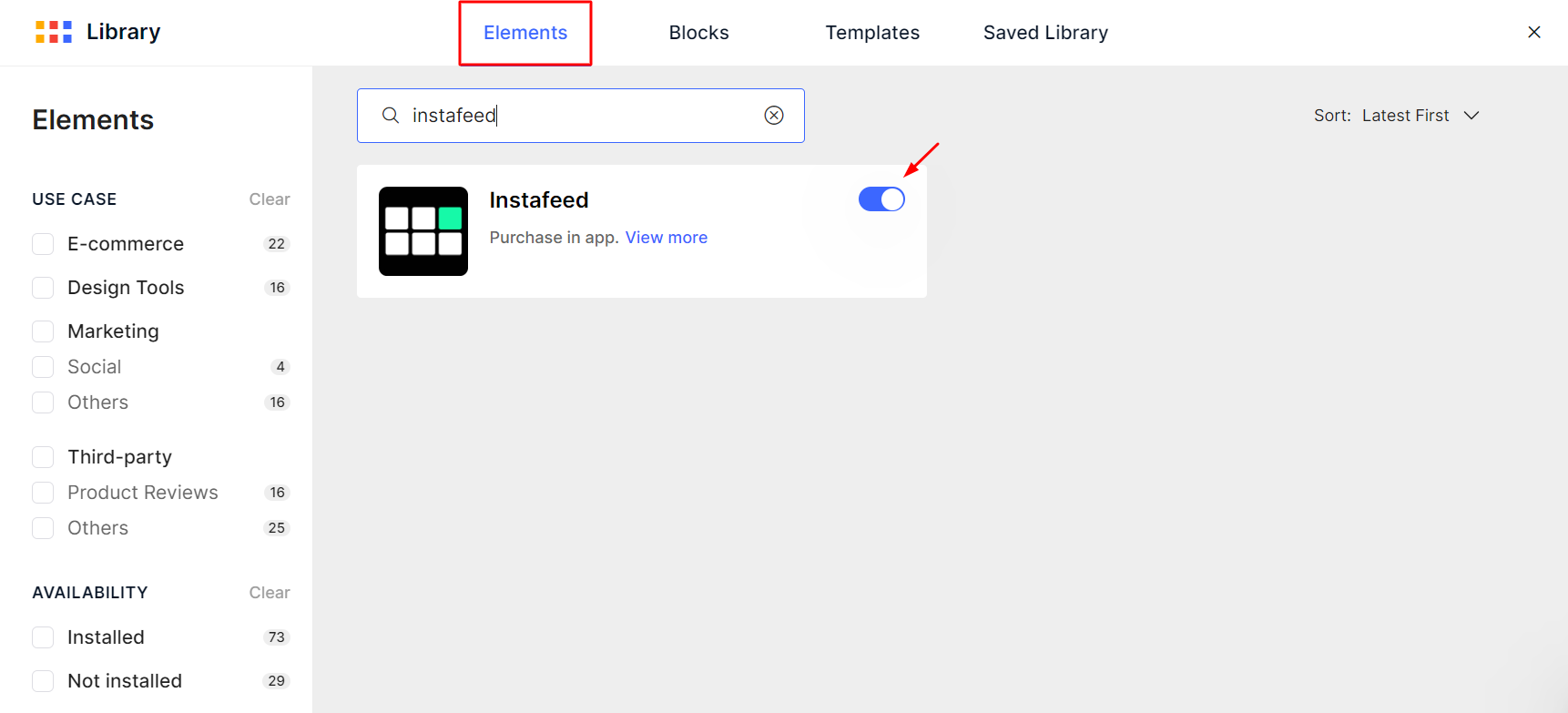
- Toggle the switch on to enable the element. Place the feed on your page
- Open the page you want to edit from the GemPages Dashboard.
- Drag the Instafeed element from the left sidebar onto the area where you want the feed.
- Click Save and Preview to confirm the feed renders correctly.
- Click Publish when everything looks right. The feed pulls whichever Instagram content you've configured in the Instafeed app, including shoppable tags and UGC.
Common questions
- Does Instafeed work on the free plan?
Yes. Instafeed's free plan covers responsive layouts, photo and Reel display, auto-sync, and customizable pop-ups. Product tagging, UGC display, and multiple feeds are on paid plans, with a 7-day free trial.
- Do I need to add embed code?
No. Instafeed is integrated as a native GemPages element, so no code is required.
- Will this slow down my page?
Instafeed is built to be lightweight. Performance impact on GemPages pages is minimal.
- Where do I configure feed content and styling?
Inside the Instafeed app. GemPages controls placement on the page; Instafeed controls which posts appear and how the feed is styled.
- Which GemPages editor versions does this work in?
Both V6 and V7 are supported. V7 has Instafeed in the sidebar by default; V6 requires enabling the element in the Library first.
Need help?
If the Instafeed element doesn't appear in your GemPages sidebar, confirm both apps are installed and connected to the same Shopify store.
For GemPages-side setup, see GemPages' integration doc. For Instafeed support, contact the Mintt Studio team.